My media hotkeys (play, pause, next, etc.) have been stolen by an unknown process. How do I find a list of which global hotkeys are registered to which program in Windows 10? There are a few programs out there that do this but they only work up to Windows 7 and screw up on Windows 8+.
43 Answers
Hotkeys and multimedia keys may be overridden by hardware or drivers(unlikely), by a running program, or by system setting.
These three are distinct, and need different ways to check and solve.
Hardware
Your keyboard may have different modes, usually selectable with FN key combination. Some smart keyboards are configurable through a windows utility. See your keyboard documentation.
Running programs
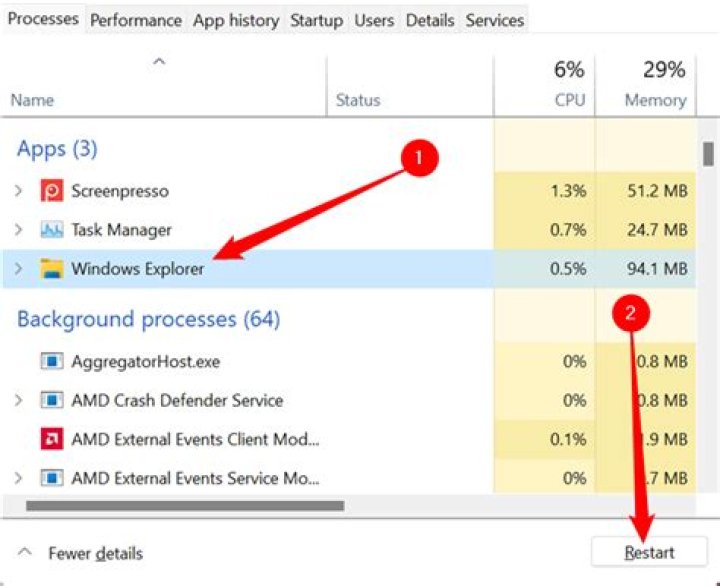
Although this approach is a bit brutal, I suggest launching the task manager and terminating all processes except system ones like: svchost, lsass, csrss, smss, services, userinit, dwm, winlogon, explorer.
If that helped, reboot and try terminating them one by one to see which one causes problems. You can disable startup of offending process through msconfig or SysInternals autoruns programs.
System settings
Press windows Start button, type 'regedit' and browse to HKEY_CURRENT_USER\SOFTWARE\Microsoft\Windows\CurrentVersion\Explorer
Delete registry key ("folder") named AppKey if it exists.
Now browse to HKEY_LOCAL_MACHINE\SOFTWARE\Microsoft\Windows\CurrentVersion\Explorer\AppKey and do not delete it.
There are few subkeys (subfolders) that define which program is started when a multimedia key is pressed.
Below are the defaults for windows 7, yours should be similar:
[HKEY_LOCAL_MACHINE\SOFTWARE\Microsoft\Windows\CurrentVersion\Explorer\AppKey] [HKEY_LOCAL_MACHINE\SOFTWARE\Microsoft\Windows\CurrentVersion\Explorer\AppKey\15] "Association"="mailto" [HKEY_LOCAL_MACHINE\SOFTWARE\Microsoft\Windows\CurrentVersion\Explorer\AppKey\16] "Association"=".cda" [HKEY_LOCAL_MACHINE\SOFTWARE\Microsoft\Windows\CurrentVersion\Explorer\AppKey\17] "ShellExecute"="::{20D04FE0-3AEA-1069-A2D8-08002B30309D}" [HKEY_LOCAL_MACHINE\SOFTWARE\Microsoft\Windows\CurrentVersion\Explorer\AppKey\18] "ShellExecute"="calc.exe" [HKEY_LOCAL_MACHINE\SOFTWARE\Microsoft\Windows\CurrentVersion\Explorer\AppKey\7] "Association"="http" To assign a key to a program of your choice, delete any values under appropriate registry key, and create a new string (REG_SZ) value named ShellExecute and a full path to a program of your choice as a value, such as c:\vlc\vlc.exe
If there is no key with the number you need (see below), just create one.
Here is a list of known multimedia keys and their corresponding numbers under Appkey\
1 Back (Internet browser) 2 Forward (Internet browser) 3 Refresh (Internet browser) 4 Stop (Internet browser) 5 Search 6 Favourites 7 Web Home 8 Mute volume 15 Mail 16 Media 17 My Computer 18 Calculator 24 Mute microphone 25 Lower microphone volume 26 Raise microphone volume 27 Help 28 Find 29 New 30 Open 31 Close 32 Save 33 Print 34 Undo 35 Redo 36 Copy 37 Cut 38 Paste 39 Reply 40 Forward (mail) 41 Send 42 Spelling checker 43 Toggle dictation and command/control 44 Toggle microphone 45 Corrections (Aforementioned list was copied from (in French) )
The settings should work after reboot.
Desktop shortcuts
It may be possible to assign the hotkeys you need to a shortcut on windows desktop, start menu, quick launch panel, or pinned to the task bar.
Searching through those could be a pain, instead you may want to copy following text in a new text file, replace c:\ in first line with your user home directory path such as c:\Users\jwhite\, save under a name Script.vbs and run it.
Const rootdir = "c:\" Set fso = CreateObject("Scripting.FileSystemObject") Set wshell = CreateObject("WScript.Shell") logname="test.txt" Set logfile = fso.CreateTextFile(logname,True) logfile.Write "Searching for shortcuts with hotkeys" & vbCrLf recursedirs( fso.GetFolder(rootdir) ) logfile.Write "Done searching" & vbCrLf logfile.Close Sub recursedirs(dir) If trylistdir(dir) Then For Each subdir In dir.SubFolders recursedirs subdir Next For Each file In dir.Files extn = fso.GetExtensionName(file.Path) if LCase(extn) = "lnk" Then check(file.Path) end if Next End If End Sub Function trylistdir(dir) On Error Resume Next trylistdir = (dir.SubFolders.Count + dir.Files.Count >= 0) End Function Sub check(fname) Set lnk = wshell.CreateShortcut(fname) hk = lnk.Hotkey if (hk<>"") then logfile.Write fname & " : " & hk & vbCrLf end if End Sub After a few minutes it should create a file named test.txt in the same folder as script itself with contents such as:
Searching for shortcuts with hotkeys C:\test\test01.lnk : Alt+Ctrl+Z C:\test\test02.lnk : Alt+Ctrl+Shift+E Done searching Software
AFAIK, Windows Hotkey Explorer software worked by pressing every hotkey it could, and then attempting to intercept whatever got called as a result. I believe as of Windows 8 and higher it is not possible to intercept hotkeys that way anymore, therefore this method no longer works, so there may be no such a software possible.
I believe asking for software recommendation may not be appropriate for SuperUser.com anyway, instead you may want to upvote following question on website dedicated for that:
3it seemed that ctrl + shift + o was blocked
so i opened the tool anw saw that it was actually used, but couldn't see which program
so i opened the taskmanager and killed task by task and always hit refreh in the tool until i found it was some amd...exe probably some kind of screen recorder
1The program Hotkey Detective () works at the time of this writing.