I upgraded my laptop system from Windows 8 to Windows 10, I can see different lock screens, but my friend who upgraded her system from Windows 7 to Windows 10 can see the geographical location of different scenes which change automatically every day.
I want to see the geographical location of the scene too.
I searched in the settings but could not find it. How can I find and adjust this setting?
2 Answers
Edit
I have just found an option on the settings for the lock screen to enable tips and extra information. I don't know if this will give you the information you expect as I have it disabled on my machine.
Original Answer I suspect your friend has got an extra app to retrieve the geographic location of the images. I haven't been able to find anything that gives this information by default.
All is not lost though. There is a way you can find the information you ask for. Although you have to do a bit of digging.
The images are distributed through Microsoft's Content Delivery Network and are stored on your PC in the following location:
C:\Users\YOURNAMEHERE\AppData\Local\Packages\Microsoft.Windows.ContentDeliveryManager_cw5n1h2txyewy\LocalState\Assets You might have to enable "show hidden files" in order to get to this location. In this folder there are a lot of files with random names like:
b8ec8fee2e928bbcd541544a9762c1165c64526aff766b666b9408eaae8774b7 If you add .jpg to the end of this file name you will discover that it turns into a picture file. You can now open the file properties window and view the metadata. Sometimes this metadata will include GPS co-ordinates, in others (like my example) it will have a completed description and tags.
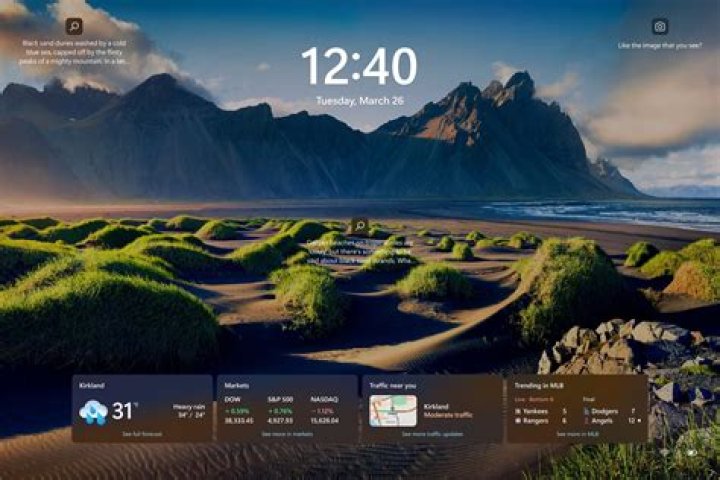
I solved this problem but in a different way. Maybe that would help you, too.
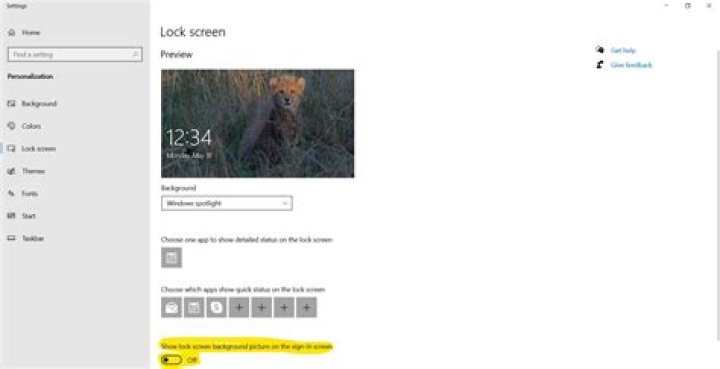
Go to Personalization settings. Turn Off the "Show lockscreen background picture on sign-in screen" option. While this button is on, your password dialog box will have the same lockscreen background. This locks all the fun facts and location info for the background.
If you turn it off, you can see the fun facts and your password dialog box will have a plain blue background now. Refer image for more info.
Hope this helps.