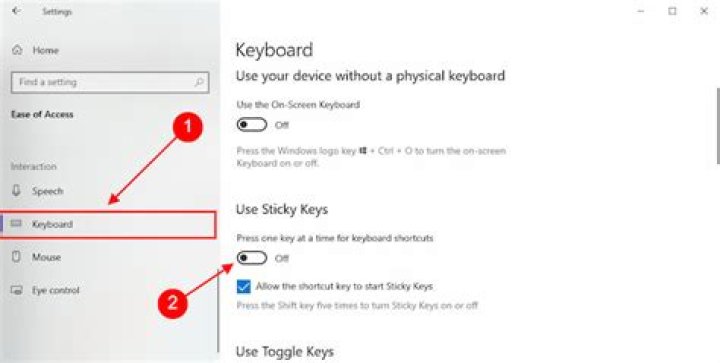
Currently there is a bug in Team-viewer that it opens in full window on windows start up, and no available options on the internet can get it to close. It is reported by many users.
Aim: Normal service startup, on login, team-viewer is minimized to tray.
Many users are having this problem; here are some examples. One, Two, Three, Four, Five
1 Answer
Teamviewer has a service and a program. This will close the program on system login of any user within a few seconds of login, the service will still be running and in the system tray, not instantaneous but faster then user system startup folder.
How to make the batch file:
- Open Start.
- Search for Notepad
- Open, write script
@echo off taskkill /IM "TeamViewer.exe" /F - save as
- start-min-teamviewer.bat
- click "save type as" and change to
All Files (*.*) - Save to:
C:\Users\NetworkAdmin\AppData\Roaming\Microsoft\Windows\Start Menu\Programs - Or your own location
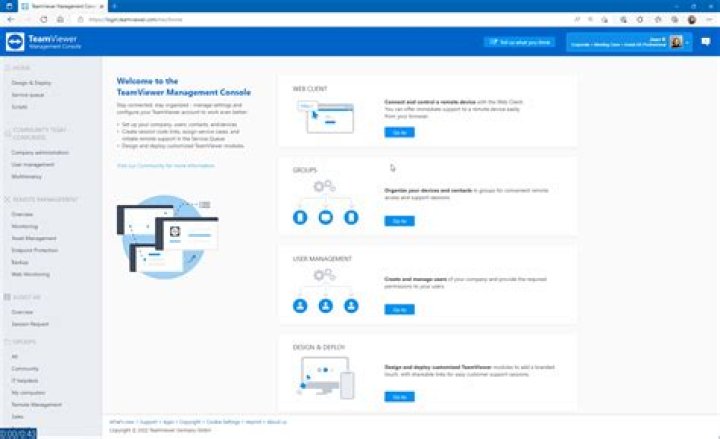
Create task scheduler (faster then startup folder).
Press the Windows + R keys, (opens run Run), and then type taskschd.msc
On the right click
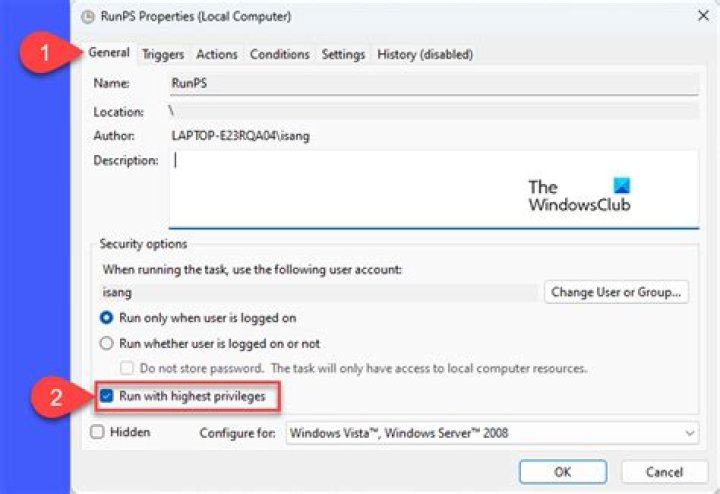
create taskName: Teamviewer Minimize To Tray (in the example its just
minteam)Tick Run with highest privileges
- In the trigger window, set to At login of any user
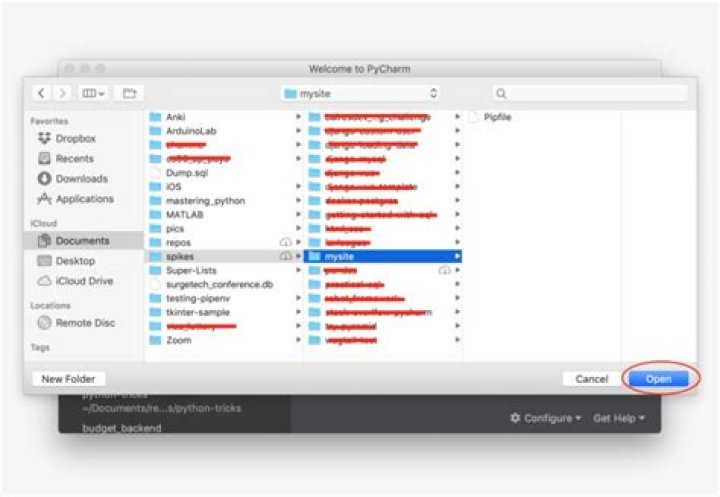
- Under actions tab: New--> Start a program -->
"C:\Users\NetworkAdmin\AppData\Roaming\Microsoft\Windows\Start Menu\Programs\start-min-teamviewer.bat"into theprogram\scriptbox - OK
- Ok done.
- Logoff, Logon, and should close within a few seconds of opening.