I got me a nice new laptop and I want to know a bit more about the hardware.
How can I see how many CPUs my computer has in Windows 7?
(Note: Clicking on Start → right clicking on Computer → selecting properties shows me the processor type, but it does not say anything about the core count.)
28 Answers
Use CPU-Z
Or open task manager and go to the performance Tab. There will be a graph for each cpu in the upper pane.
2
You don't need other programs. Just run this in the command prompt:
WMIC CPU Get DeviceID,NumberOfCores,NumberOfLogicalProcessors and you will get a list of Cores/Logical Processors for each CPU on your machine
Or if you're lazy, just type
WMIC CPU Get /Format:List and look for entries with the names NumberOfCores and NumberOfLogicalProcessors.
Do a Ctrl + Shift + Esc. This will open the Windows Task Manager. Once you are here, go to Performance. Now you should see many boxes in the CPU Usage History section which will identify how many cores you have. This will include hyper threaded cores also.
-Hope this helps.
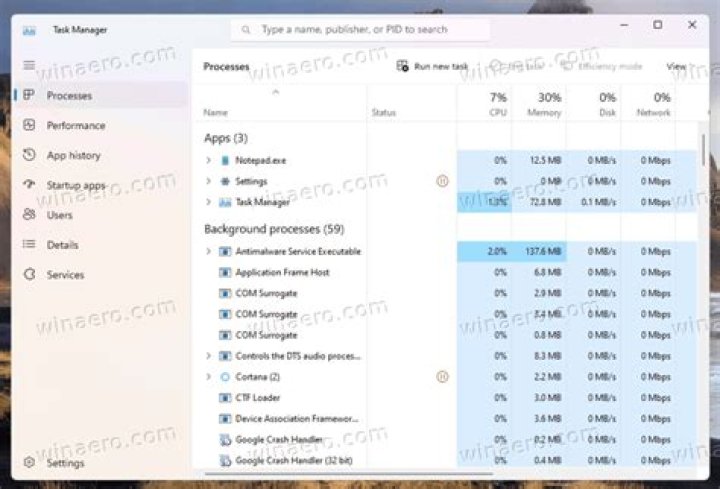
Check your Task Manager. You can look under the performance tab and count the number of cores. If your processor has HyperThreadingTechnology (HTT) then half of the cores are logical and not physical.
Or you can just do this:
Windows + R then type: msinfo32 and hit Enter.

On a shell type:
echo %NUMBER_OF_PROCESSORS% Not necessarily as advanced on the others, but the all CPU meter is one of the few useful things I've used in terms of widgets on Windows 7.
It's a pretty good tool for keeping track of how much CPU power is being used. It will also display how many cores your computer has and is fairly unobtrusive.
You can also tell by going to Device Manager, and then going to the processor section. It'll display a little thingamajig (I forgot what they're called :/) for each core, but I'm not sure if it can tell the difference between cores and virtual cores.
1