In Windows 7, you can press Shift+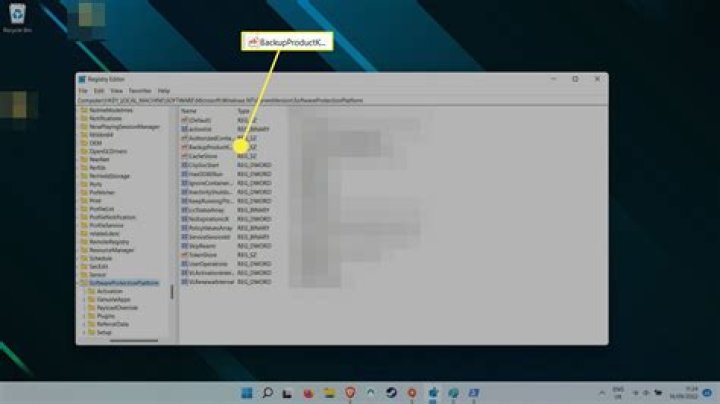 +←/→ to instantly move the current window to the next/previous monitor. Is there an equivalent feature in Ubuntu 11.04? I poked around the
 Keyboard Shortcuts dialog but didn't see anything relating to moving windows among multiple monitors.
6 Answers
What you need:
- wmctrl (
sudo apt-get install wmctrl) - The dimensions of each monitor
How to do it:
- From the terminal, run
gnome-keybinding-propertiesand click "Add"- Name the entry something like "Move to left monitor" and enter this command:
wmctrl -r ":ACTIVE:" -e 0,0,0,1280,1024- You can change ":ACTIVE:" to ":SELECT:" and wmctrl will wait until you select a window
- The values for -e are
gravity,x-coordinate,y-coord,width,height. I have gravity set to 0, which is default (I don't actually know what gravity does), x and y-coordinates set to 0 and 0, and the width and height are the dimensions of the left monitor: 1280 and 1024. Change this to match your configuration.
- Click where it says "Disabled" and press the same keyboard shortcut as in windows, i.e. Shift+Super+left
- Make another entry for "move to right monitor"
wmctrl -r ":ACTIVE:" -e 0,1280,0,1366,768- Where I have "1280", put the horizontal resolution of your left monitor. The vertical resolution can be more tricky if your monitors have different resolutions, and especially if they aren't lined up along the top or bottom. Mine are aligned along the top, so the vertical-coordinate value is "0".
- My right monitor is 1366x768, so replace those values with the appropriate ones.
- Map the shortcut-key sequence and you're finished!
- Name the entry something like "Move to left monitor" and enter this command:
You may have to tweak the coordinates and dimensions to account for the top (usually 24px tall) or side panels.
For more reading on wmctrl, check out
I hope this helps!
2Compiz and Unity will be soon obsolete.
- On Plasma 5 (KDE) it can be set from default keyboard shortcuts list.
- On Gnome 3
shift + meta(super/windows) + arrows. For putting to corners you need additionally .
If you use Compiz as the window manager on your Ubuntu installation (Which I believe comes pre-installed with 11.04). Open Compiz Config Settings Manager (do a sudo apt-get install compizconfig-settings-manager if you don't have ccsm installed.)
- Go to
Window Management -> Put - Enable the Put plugin.
- Give your required key combination for the
Put To Next Outputoption in theBindingstab.
This will allow you to get the same functionality as what you require. The Put plugin has loads of other productivity increasing options too. Enjoy.
6If you're using Budgie Desktop Environment,
then the default shortcut for moving window into monitor is Shift + Super + Arrow.

On a fresh install of 20.x.x.x
Windows + Shift + Left
Worked just like it would on a Windows machine.
1If you use Xfce as your desktop environment in Ubuntu or Linux Mint, you can obtain a script, "move-to-next-monitor" from GitHub:
There are two dependencies: "xdotool" and "wmctrl".
You can assign any key combination to execute the script. I use the same key combination as the Windows shortcut. I have been using this script for several years on various generations of Ubuntu and Linux Mint with the Xfce desktop.