How do I change my default home directory to "C:\Users\khornsby" for every time I open powershell?
I am running Windows 7. Below is info about the state of my environment.
Windows PowerShell Copyright (C) 2009 Microsoft Corporation. All rights reserved. PS P:\> cd ~ PS P:\> echo $HOME P:\ PS P:\> HOME="C:\Users\khornsby" The term 'HOME=C:\Users\khornsby' is not recognized as the name of a cmdlet, function, script file, or operable program. Check the spelling of the name, or if a path was included, verify that the path is correct and try again. At line:1 char:25 + HOME="C:\Users\khornsby" PS P:\> Set-Variable HOME "C:\Users\khornsby" Set-Variable : Cannot overwrite variable HOME because it is read-only or constant. At line:1 char:13 + Set-Variable PS P:\> dir env:home* Name Value ---- ----- HOMEPATH \ HOMEDRIVE P: HOMESHARE \\fileserv\khornsby$ PS P:\>2
5 Answers
The variable is read only by default, but can be removed with the -Force switch to Remove-Variable. To make your change persistent across sessions, you can make a profile file which is much like a .bashrc (For bash on Linux) except for Powershell.
In your Documents directory (normally C:\Users\YOUR_USERNAME_HERE\documents) for your user account, create a WindowsPowerShell folder (named exactly like that) if one does not already exist. Inside the folder, create a text file called profile.ps1 (ensure it's not profile.ps1.txt).
Inside the file, place anything you want executed when you open Powershell.
example:
Write-Host "Hi John, welcome back!" Remove-Variable -Force HOME Set-Variable HOME "C:\Users\khornsby" result:

To address @Weeble 's concern about the ~ shortcut:
$HOMEDRIVE = "C:\" $HOMEPATH = "Users\" + $env:username # Set and force overwrite of the $HOME variable Set-Variable HOME "$HOMEDRIVE$HOMEPATH" -Force # Set the "~" shortcut value for the FileSystem provider (get-psprovider 'FileSystem').Home = $HOMEDRIVE + $HOMEPATH See here for the distinction between ~ and $HOME
1To change from within Windows, try the following:
Pin PowerShell to the taskbar.
Right click the PowerShell icon on the taskbar.
Right click 'Windows PowerShell' and select 'Properties'.
Within the 'Properties' window, go to the 'Shortcut' tab and change the 'Start in:' field to your desired starting directory. (Example:
C:\Users\username\Desktop).Click 'OK'.
Launch PowerShell from the taskbar.
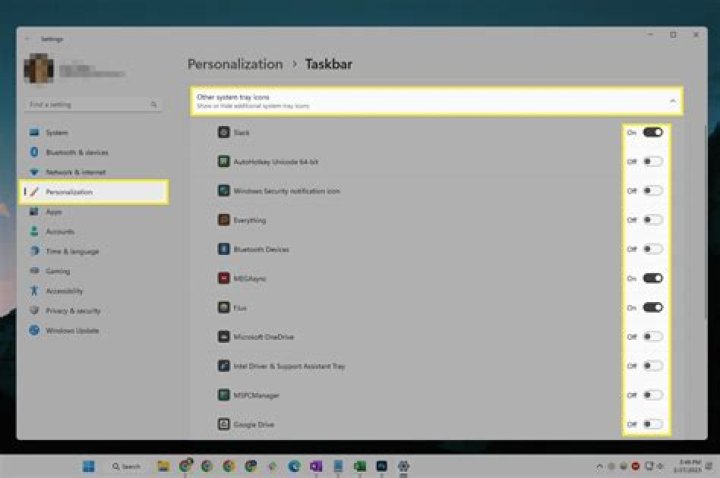
Even easier ... open up advanced system settings ...
C:\> systempropertiesadvanced Add a new system variable named HOME with the path to your profile
Restart explorer or log out and back in ...
PS C:\> $Env:home --- You can use help about_profiles to see more details about this. Do not forget to sign your script.