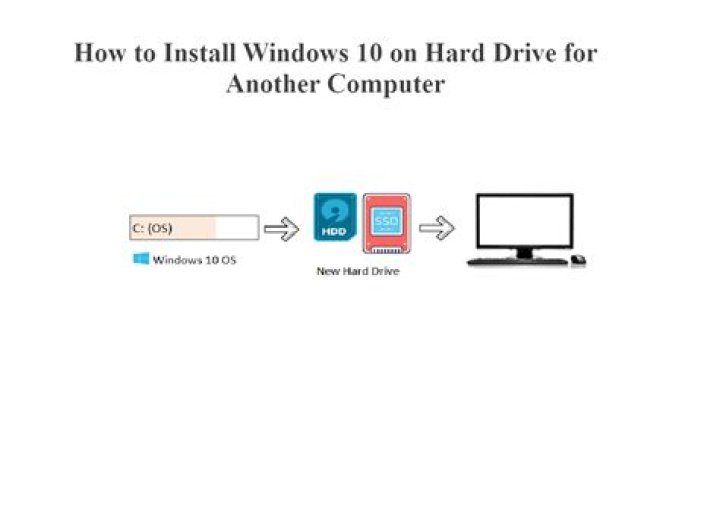
I switched my M2.SSD from a Dell XPS 9570 with a dedicated graphics card to a Dell XPS 9360. Installed is Windows 10 Pro x64 with BitLocker enabled.
Now, when starting up after typing my recovery key, I get a WDF_VIOLATION BSOD. Naturally I tried to safe-boot into Windows using a Windows installation media. Problem: even when selecting safe mode, it still fails with the same BSOD.
Using the command prompt of the installation media, I can perfectly browse through all BitLocker encrypted sections. So it must not be a hard drive problem.
I already tried the automatic startup repair functionality from the recovery media. It says "automatic repair is not possible".
What can I do in this case?
Update: I was able to unprotected the device using the command line from a troubleshoot bootable USB. Still, the error persists.
I used the following command to unprotect the system drive:
manage-bde -protectors -disable C: -rp "key here"
Now I can boot into the troubleshoot command line from the USB stick without entering the recovery key and can see all my volumes using diskpart and I can even browse all my files on the C: partition.
Trying to disable encryption fully does not seem to work, though:
manage-bde -off C:
Results in:
ERROR: An error occurred (code 0x80073bc3): The requested system device cannot be found.
Which is totally strange since just seconds before it was happy to unprotect the same drive.
manage-bde -status C:
Results in saying the drive is unlocked as well as unprotected.
84 Answers
The problem was one of these drivers. My last act before I would be forced reinstalling Windows was to just remove all drivers which sounded unnecessary for the system bootup. And guess what, it solved the problem. I did this with the command prompt from a bootable USB stick and used the command:
Dism /Image:C:\ /Remove-Driver:<name> The list of drivers can be received with
Dism /Image:C\ /Get-Drivers I don't know which of these drivers was the faulty one. After being able to go into Windows, I ran Windows Update and it installed all now-missing drivers automatically.
My system seems to be in a perfect and healthy state. Apparently, the issue was not related to BitLocker.
For anybody interested, here's the list of drivers I uninstalled:
Published Name : oem0.inf Original File Name : prnms009.inf Inbox : No Class Name : Printer Provider Name : Microsoft Date : 6/21/2006 Version : 10.0.17763.1 Published Name : oem13.inf Original File Name : intcaudiobus.inf Inbox : No Class Name : System Provider Name : Intel(R) Corporation Date : 11/4/2016 Version : 9.21.0.1680 Published Name : oem18.inf Original File Name : oemsetup.inf Inbox : No Class Name : Printer Provider Name : Ricoh Date : 12/9/2015 Version : 1.9.0.0 Published Name : oem19.inf Original File Name : hpvyt12.inf Inbox : No Class Name : Printer Provider Name : HP Date : 4/16/2013 Version : 12.28.0.2027 Published Name : oem20.inf Original File Name : hpwia_oj4630.inf Inbox : No Class Name : Image Provider Name : Hewlett-Packard Date : 4/16/2013 Version : 31.0.1150.42326 Published Name : oem21.inf Original File Name : hpoj4630fax.inf Inbox : No Class Name : Printer Provider Name : HP Date : 11/11/2013 Version : 32.0.110.46548 Published Name : oem22.inf Original File Name : hpreststub.inf Inbox : No Class Name : USB Provider Name : Hewlett-Packard Date : 4/16/2013 Version : 31.0.1150.42326 Published Name : oem23.inf Original File Name : prnms006.inf Inbox : No Class Name : Printer Provider Name : Microsoft Date : 11/29/2016 Version : 16.0.7629.4000 Published Name : oem24.inf Original File Name : nvdm.inf Inbox : No Class Name : Display Provider Name : NVIDIA Date : 5/22/2018 Version : 24.21.13.9793 Published Name : oem25.inf Original File Name : nvhda.inf Inbox : No Class Name : MEDIA Provider Name : NVIDIA Corporation Date : 5/22/2018 Version : 1.3.37.4 Published Name : oem29.inf Original File Name : intcaudiobus.inf Inbox : No Class Name : System Provider Name : Intel(R) Corporation Date : 3/27/2018 Version : 10.23.0.1520 Published Name : oem3.inf Original File Name : ibtusb.inf Inbox : No Class Name : Bluetooth Provider Name : Intel Corporation Date : 10/8/2018 Version : 20.90.1.1 Published Name : oem37.inf Original File Name : hdx_dellcsmbext_waves.inf Inbox : No Class Name : Extension Provider Name : Realtek Semiconductor Corp. Date : 5/29/2018 Version : 6.0.1.8454 Published Name : oem38.inf Original File Name : dellaudioextwaves.inf Inbox : No Class Name : Extension Provider Name : Dell Date : 5/30/2018 Version : 1.3.2.178 Published Name : oem39.inf Original File Name : wavesapo75de.inf Inbox : No Class Name : SoftwareComponent Provider Name : Waves Date : 5/15/2018 Version : 3.2.0.76 Published Name : oem4.inf Original File Name : intcdaud.inf Inbox : No Class Name : MEDIA Provider Name : Intel(R) Corporation Date : 3/22/2018 Version : 10.25.0.4 Published Name : oem44.inf Original File Name : lwcusb.inf Inbox : No Class Name : Image Provider Name : Logitech Date : 10/24/2018 Version : 1.3.89.0 Published Name : oem45.inf Original File Name : helloface.inf Inbox : No Class Name : Biometric Provider Name : Windows Hello Face Date : 6/1/2018 Version : 10.0.17763.168 Published Name : oem47.inf Original File Name : intcdaud.inf Inbox : No Class Name : MEDIA Provider Name : Intel(R) Corporation Date : 9/4/2018 Version : 10.26.0.1 Published Name : oem48.inf Original File Name : intcdaudsgpcoffext.inf Inbox : No Class Name : Extension Provider Name : Intel Corporation Date : 11/18/2018 Version : 25.20.100.6323 Published Name : oem9.inf Original File Name : intcdaud.inf Inbox : No Class Name : MEDIA Provider Name : Intel(R) Corporation Date : 12/6/2017 Version : 10.24.0.3 I was getting the same error as I was stumbling around trying to fix my wife's Dell XPS 13 after a failed update.
ERROR: An error occurred (code 0x80073bc3): The requested system device cannot be found
I kept trying to figure out WHY IT COULD NOT BE FOUND. I mean, I’m working on the device now, right? I’m making changes to it, and you’re acknowledging that I’ve made changes to it, but also, it’s not found? Huh?
The insight was when I traced it back to the specific error code in the Microsoft documentation. (Other web posts I found mentioning this error code had never had the difficulty I had resolving it.)
Here’s what it said on the Microsoft page (emphasis mine):
0x80073BC3 - 0x20009 0x80070002 - 0x20009 0x80073B92 - 0x20009 These errors occur during partition analysis and validation, and can be caused by the presence of multiple system partitions. For example, , if you installed a new system drive but left the previous system drive, connected, this can cause a conflict. To resolve the errors, disconnect or temporarily disable drives that contain the unused system partition. You can reconnect the drive after the upgrade has completed. Alternatively, you can delete the unused system partition. The requested system device cannot be found, there is a sharing violation, or there are multiple devices matching the identification criteria.
I realized that the problem might not be that it couldn’t FIND a partition. It was that it found MORE THAN ONE system/boot partition.
I remembered early on in this multi-day process that in following some fix I had found on the interwebs, I had marked a partition on a 2nd disk as ACTIVE before I knew what the hell I was doing.
I went into diskpart, marked it as INACTIVE, and this solved the problem.
This is normal for a disk secured with bitlocker.
Most people will put the drive back in the old machine, then remove bitlocker. move the disk to the new machine then reinstall bitlocker. (It has to do with the particular TPM in each device.)
Yes I am aware that you can move the disk without doing that. But the procedure is often too complicated for most people, so i'm not going to bother with it here. Its much easier to uninstall, move, reinstall.
2The Microsoft article BitLocker Deployment and Administration FAQ says:
Can I access my BitLocker-protected drive if I insert the hard disk into a different computer?
Yes, if the drive is a data drive, you can unlock it from the BitLocker Drive Encryption Control Panel item just as you would any other data drive by using a password or smart card. If the data drive was configured for automatic unlock only, you will have to unlock it by using the recovery key. The encrypted hard disk can be unlocked by a data recovery agent (if one was configured) or it can be unlocked by using the recovery key.
The answer is then that you cannot boot from the disk in another computer than the original one, but you may unlock the disk while booting from another disk.
I suggest then to either put the disk in another computer for unlocking it and then undoing the BitLocker encryption before returning it to the Dell XPS 9360 computer. Perhaps booting from a Windows boot USB will be enough to make it work.
15